Google payment error OR-CCSEH-05? Find which group your code is inDeclined by your bank, needs verifying, or only Google can fix it: what to do for each group of codes

The OR code in a failed Google Play or Google payment tells you where the problem is, and Google's own help centre sorts the codes into three groups. Declined by your issuer (OR-CCSEH-22, OR-HDT-14 and others): use another payment method, or ask your bank to allow international and online payments. Verify your info (OR-IEH-01, OR-HDT-09 and others): go to payments.google.com and choose Alerts, then Verify. Contact Google support (OR-CCSEH-05, OR-BAIH-10 and others): wait two days, pay again, and contact Google if it still fails. Find your code in the table below, then jump to its section.
What's in this guide
- Which group is your code in?
- OR-CCSEH-05: Google says wait two days, not call your bank
- OR-HDT-14 and OR-CCSEH-22: your issuer declined, so get it to approve
- OR-IEH-01 and OR-HDT-09: how to verify, and where the code is
- "Your payment method is linked to too many Google Accounts"
- No code, just "Your transaction cannot be completed"
- Why a virtual card won't work on Google Play
- A few questions people ask
Which group is your code in?
This table follows Google Pay Help's page on fixing issues when you pay for Google products and services, read on 6 October 2026. Google writes some codes with hyphens (OR-CCSEH-05) and some with underscores (OR_CCREU_01); they are copied as Google prints them, so if yours looks slightly different, search both forms.
| Group | Codes Google lists | First thing to do |
|---|---|---|
| Declined by your issuerbank said no, or online abroad is off | OR-CCSEH-22, OR-HDT-14, OR-CCSEH-32, OR-PMCR-32, OR_CCREU_01 to OR_CCREU_07, OR_PMCR_58, OR_PMCR_60, OR_BIBED_03, OR_BIBED_08, OR_ISMF_08, OR_C3S2CR_22, OR_C3S2H_22, OR_MIVEM_04, OR_FPIU_14, OR_AMR_01 | Use a different payment method, or ask the card issuer to allow international and online transactions |
| Verify your info | BM-CPEC-02, OR-CAC-02, OR-HDT-09, OR-IEH-01, OR-IEH-02 | Sign in at payments.google.com and choose Alerts, then Verify |
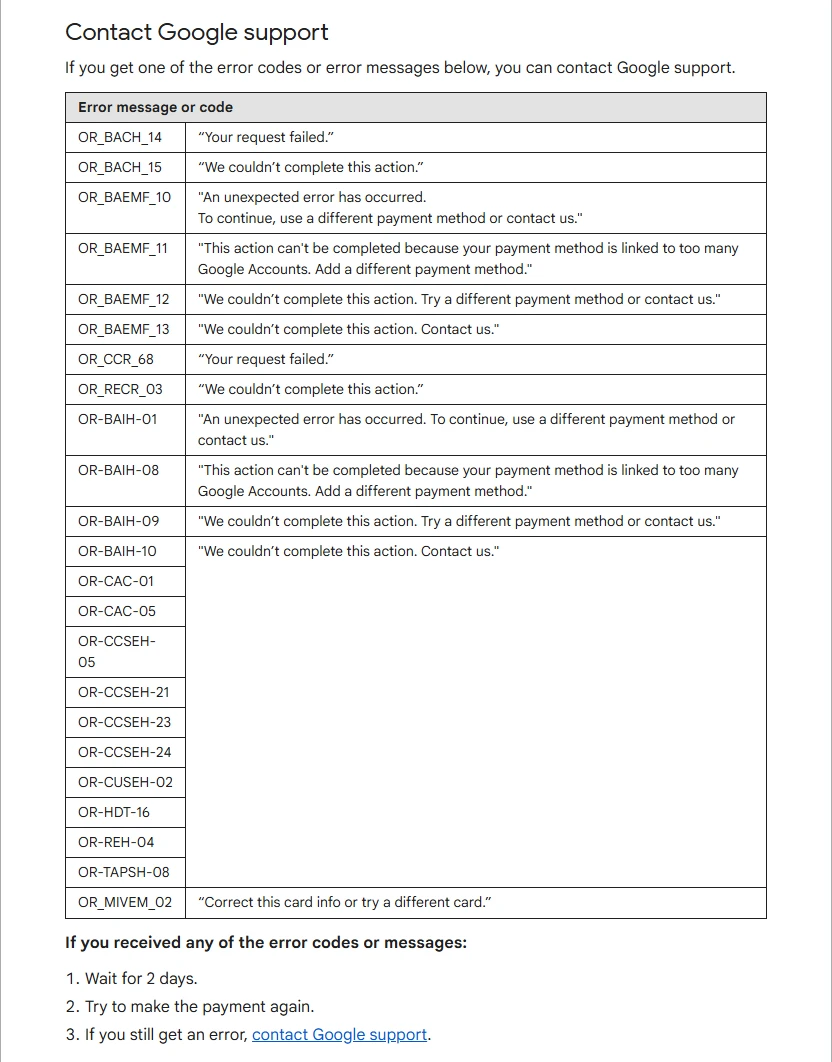
| Contact Google support | OR-CCSEH-05, OR-CCSEH-21, OR-CCSEH-23, OR-CCSEH-24, OR-BAIH-01, OR-BAIH-08, OR-BAIH-09, OR-BAIH-10, OR_BACH_14, OR_BACH_15, OR_BAEMF_10 to OR_BAEMF_13, OR_CCR_68, OR_RECR_03, OR-CAC-01, OR-CAC-05, OR-CUSEH-02, OR-HDT-16, OR-REH-04, OR-TAPSH-08, OR_MIVEM_02 | Wait two days and pay again; if it still fails, contact Google support |
One code in the first group behaves differently. OR_AMR_01 comes with the message "Contact your organization's Workspace or Cloud Identity Administrator". It shows up on Google accounts run by an employer or a school, and the person to ask is that organisation's IT admin, not a bank.
OR-CCSEH-05: Google says wait two days, not call your bank
Search for this code and plenty of pages say your bank declined the payment. Google's own help page files it differently: OR-CCSEH-05 sits with OR-CCSEH-21, OR-CCSEH-23 and OR-CCSEH-24 in the group Google handles itself, and the fix is three steps.
- Wait two days. Google's wording is "Wait for 2 days", not a few minutes.
- Try the payment again. Same account, same payment method.
- If it fails again, contact Google support. Both Google Pay Help and Google Play Help have a Contact us option; pick the one for what you were buying.
Before you write in, open payments.google.com and check Alerts: a pending verification request may be the real block, and clearing it comes first. In the first message to support, include the code exactly as shown, the date and rough time of the attempt, the amount, what you were buying and the last four digits of the card, which saves a round of questions.
There is no need to cycle through every card you own in the meantime. Google routes this group to its own support team, which suggests the card itself may not be the problem; that is an inference from the grouping, as Google doesn't explain each code. If you need to pay now, Google Play balance avoids the card altogether.
OR-HDT-14 and OR-CCSEH-22: your issuer declined, so get it to approve
The messages in this group read like "[Your payment issuer] declined your payment", "Transaction declined. Try a different payment method or contact your card's issuer" or "Correct this card info or try a different card". Google's explanation is that the bank declined the transaction or the payment method isn't enabled for international or online use. Work through it in this order:
- Check the card details first. At payments.google.com, open Payment methods, check the expiry date, then choose Edit and make sure the postcode or ZIP code matches the billing address your bank holds. Google Play Help names expired cards and old billing addresses as common reasons payments fail.
- Check the balance or credit limit. Insufficient funds land in this group too.
- Switch payment method. On play.google.com, click the price, open the arrow next to the payment method, and pick or add another one.
- To keep using the card, call the issuer and ask for international and online transactions to be allowed. Many banks keep "abroad" and "online" as separate switches, and only the online one matters here; where they sit at the main UK banks is in how to unblock international payments, and what to have ready for the call is in "Please contact your bank": what to ask.
"Issuer" is broader than a bank: for carrier billing it is your mobile network, and for an e-wallet it is the wallet provider.
OR-IEH-01 and OR-HDT-09: how to verify, and where the code is
"Verify your payment method", "Verify on payments.google.com" or BM-CPEC-02's "Your payment was declined due to an issue with your account" all mean Google wants to confirm the card and you before it goes further. The steps from Google Pay Help:
- Go to payments.google.com and sign in with the account you were paying from.
- At the top right, choose Alerts, then Verify. If there are no alerts, choose Payment methods and select Verify next to the card.
- Pick a method on screen: get a verification code or upload documents.
Verification code. Google puts a temporary charge of less than $1.95 on the card, converted into your currency. Find it in your bank's recent transactions: the last 6 digits are the code. Google says it usually appears straight away but can take up to 7 days, and sometimes shows as 5 digits until the bank approves the transaction. The charge is refunded within 30 days. If the 6-digit code never shows up, ask your bank about the transaction.
Upload documents. You may be asked for your legal name, address, date of birth, an image of government ID, proof of address and an image of the payment card. The same full name has to appear on everything, documents must be current and readable, and photos in colour with all four corners showing. On a bank statement, cover the full account number apart from the last 4 digits, and cover balances and transactions, which aren't needed. Review takes 1 to 7 days. This method isn't offered for YouTube or Google Store purchase verification.
Two more points from the same page: when Google asks you to verify, pending transactions are cancelled, and held money returns to your account within 14 working days. If verification fails you get an email, and an appeal follows the instructions in it.
Google Play Help says this means the card was reported stolen and has to be verified before it can be used again. Under Payment methods, choose Verify, then Charge card. Within 2 days a temporary charge called "GOOGLE TEST" appears on the card with an 8-digit code, which goes into payments.google.com. It is a separate process from the 6-digit code above. A greyed-out card marked "card is ineligible" can't be used for that purchase at all; Google's advice is to use a different card.
"Your payment method is linked to too many Google Accounts"
OR_CCREU_05, OR_CCREU_07, OR-BAIH-08 and OR_BAEMF_11 all carry the same message: the action can't be completed because the payment method is linked to too many Google Accounts, so add a different payment method. It can happen when one card is saved on several accounts, for example when a family shares one card.
Google offers one fix, which is a different payment method on this account. It files the first two codes with issuer declines and the last two with contact Google support, so if you need this particular card, wait two days and then contact support as above. For a household, setting up a family payment method in Google Play's family group may be simpler than saving the same card on every account; that is a suggestion, and the setting lives in Google Play's family settings.
No code, just "Your transaction cannot be completed"
This message turns up in several of Google's groups, so on its own it doesn't say what went wrong. Google Play Help gives an order to work through:
- If it is followed by instructions to submit more information, do that. Google says the other steps are unlikely to help in that case.
- Match the billing address. The address on the payment method should be the same as the one in your Google Pay settings; fix it and try again.
- Use the right place to pay. On a computer, pay on the product's website; on a phone, use the product's app.
- If you used guest checkout, sign in to a Google account and order again, or create one.
For carrier billing there are three more checks: be connected to your carrier's network, directly or over Wi-Fi; have carrier billing added as a payment method; pay in the local currency. On a dual-SIM phone, put the SIM you are billing in slot 1 and take out the one in slot 2. If it still fails, the mobile provider is the one to ask.
Why a virtual card won't work on Google Play
Google Play's page on accepted payment methods lists Virtual Credit Cards (VCC) under unsupported payment types, next to wire transfers, Western Union, MoneyGram, transit cards and escrow payments, both for the United States and for "other countries". So a prepaid virtual card refused on Google Play may have nothing to do with its balance or its BIN range: Google Play doesn't take that kind of card.
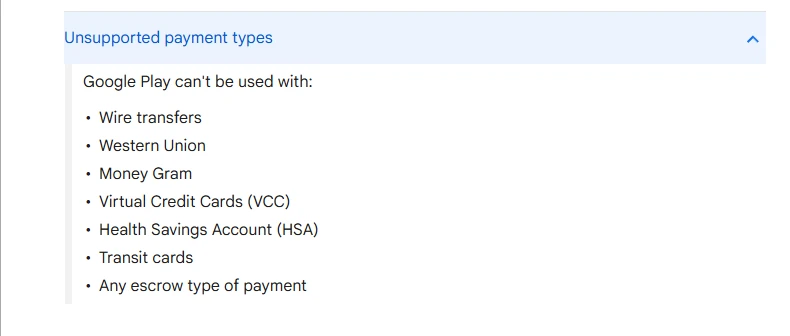
The cards Google lists are American Express, Discover, Mastercard and Visa, plus JCB in the United States, with a note that accepted card types vary and that the issuer is the one to ask if a card you expect to work doesn't. If a virtual card is all you have, these routes remain:
- A Google Play gift card. Redeemed, it becomes Google Play balance, which pays for apps, digital content and Google Play subscriptions, though balance can't buy another gift card. The card has to match the country of your account; how to buy the right one is in how gift cards work, and redeeming and spending balance in topping up App Store and Google Play without a card.
- Another payment method. What Google Play accepts depends on the country; some have PayPal, carrier billing or local wallets. Pick your country on the accepted payment methods page for the list.
- A bank-issued debit or credit card. Google lists mainstream brands such as Visa and Mastercard; check first that the card is enabled for online payments abroad.
Other platforms treat virtual cards by their own rules, so a card refused here may still work on another store. Why some merchants block prepaid card ranges is covered in virtual card declined by a merchant.
A few questions people ask
- Does OR-CCSEH-05 mean my bank declined the payment?
- Not according to Google's help page. OR-CCSEH-05 is in the contact Google support group: wait two days, try again, and contact Google support if it still fails. The issuer-declined group is codes such as OR-CCSEH-22, OR-HDT-14 and OR-CCSEH-32.
- Will I get back the money Google charges to verify my card?
- Yes. The verification charge is a temporary amount of less than $1.95, and Google says it is refunded within 30 days. When Google asks you to verify, pending transactions are also cancelled and held money comes back within 14 working days.
- Can I use a virtual card on Google Play?
- Google Play's accepted payment methods page lists Virtual Credit Cards (VCC) as unsupported. With only a virtual card, a Google Play gift card for your account's country, or another payment method offered in your country, is the way to pay.
- I've tried several cards and get the same code every time. What now?
- Check which group the code is in. For the contact Google support group, changing cards isn't among the steps Google gives: look for a pending verification at payments.google.com, wait two days, pay again, then contact support. For the issuer group, check each card's billing address and postcode and make sure each one is enabled for online payments abroad.
Checked on 2026-10-06: Google Pay Help's pages on payment issues and on verifying your identity, and Google Play Help's pages on payment issues and on accepted payment methods. Google rewords its codes and messages from time to time; if what you see differs from this guide, follow the steps in the message itself. Updated 2026-10-06.
References
- Google Pay Help: fix issues when you pay for Google products and services
- Google Pay Help: verify your identity or payment info
- Google Play Help: fix payment issues on your account
- Google Play Help: accepted payment methods on Google Play
All four are Google's own help pages. The code groups and their fixes come from the first, the verification charge and code details from the second, "Your transaction cannot be completed" and greyed-out cards from the third, and the line on virtual credit cards from the fourth.